Showing posts with label access. Show all posts

Wednesday, March 29, 2017

Virus Infected Access the Hidden Files in Any Removable Media

Virus Infected Access the Hidden Files in Any Removable Media


When the flash  drive or any external storage device  is infected with a virus. The common problem we  encounter is that the files and  folders are missing inside. We thought that the files and the folder in the removable drive is deleted by virus.

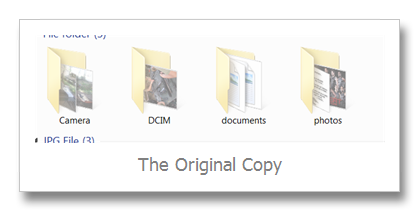
The original copy is hidden inside the removable storage media ( that is, memory card, sd card, Microsd, flash disk, portable drive, built-in memory of cellphone, thumb drive, etc.).  If you haven’t yet update your antivirus to it’s latest definitions, the probability you will get infected this kind of infection is very high.

So be careful when using your external storage media to the computer that have not yet updated their antivirus program or no antivirus at all.
Hide by Virus

The picture ‘The Original Copy” is hidden by default. If you want to show this file again, just right click the folder and click properties and uncheck the Hidden selection.


But wait it’s not all  the time you open the properties you come up with the same information. Sometimes the Hidden option  selection is blurred and  can’t be access through uncheck.

To solve the problem:

  • You may copy or backup all the files inside the folder

  • after copying/ backing up all the files in different folders you may format the storage device or just delete the hidden folder

When you’re not comfortable the copying procedure you m
ay follow my alternative option:

  • Click Start Menu, Click Run (Windows XP System)

  • Click Windows Icon, click search area (Windows Vista and Windows 7)

  • Type Cmd

  • Hit Enter key on the keyboard

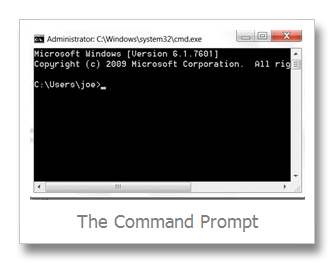
  • The windows command prompt appears
Windows CMD

Depending on the drive letter of your usb flash drive or removable device, type at the command prompt in this format

  • Removable device drive letter then colon

  • Sample if the the drive letter of the drive is F:

  • type F: , then hit enter

  • at the F:>

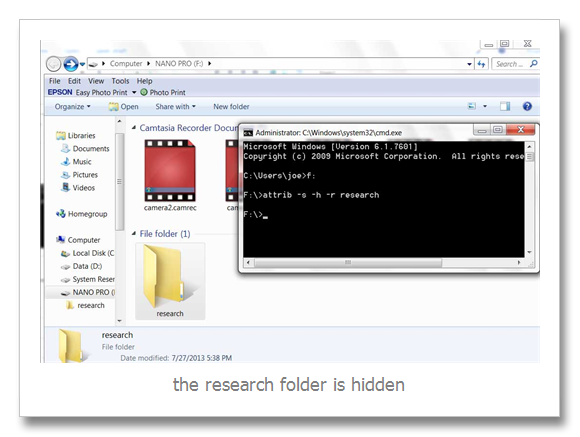
  • type the attrib –s –h –r  filename
attributes

In the above picture the research folder is blurred or hidden, to show the folder I type the attrib –s –h –r  research (research is the filename of hidden folder) to show it (hidden files in removable media|).

The solution above is useless  when your computer is still infected with a virus.


Available link for download

Read more »

Saturday, March 25, 2017

Use Share Your Pass for Quick Access to Sites

Use Share Your Pass for Quick Access to Sites


How many times have you had to register on a site, confirm an email address, and maybe even get subscribed to an annoying newsletter, just to read a single article? It’s very annoying and I’ve discovered a good service that allows you to avoid the complications.

Bugmenot used to be a pretty useful solution, as it provides usernames and passwords to a lot of websites. But it hasn’t seemed to be working for me lately. So, looking for an alternative, I discovered Share Your Pass. It has categories of sites you can find logins for.
share your pass
All you have to do is to search for the site you want to get a log in for. Once you’ve found it, click to see the username. Then, just use that for your single login. The good thing about the site is that you can Report a Login that doesn’t work, and it will get checked by the administrators.
You can add your own free logins, too, for others to use. The form can be found by scrolling to the bottom of the page.
add free logins
The site also has a Firefox add-on, which you can get here. 
add on accept and install
Once it’s installed, an icon for the add-on will appear on your Firefox add-on bar. When you’re on a site you need a login for, just click its icon, and a window showing all available logins will pop up.

Available link for download

Read more »