Showing posts with label check. Show all posts
Showing posts with label check. Show all posts
Friday, February 10, 2017
Use an automated backup script that will check your backup drive letter
Use an automated backup script that will check your backup drive letter
I have tried many different tools for automated backup, both third party and the ones built into windows, but the best one by far is Robocopy. It is the most robust, stable and reliable tool that youll ever find to automate backups both in the enterprise environment and at home.
I use Robocopy scripts to mainly create backups onto an external USB drive that can be routinely taken offsite and switched with another external drive.
The biggest problem when using automated backup onto an external drive is the fact that the letter of the drive may change at some point if the drive was unplugged and then re-plugged. This causes your backup procedure to miss the target drive and backup will not run.
Heres an example of a script that overcomes the problem of the changing drive letter.
In this example we run a mirror backup of a server folder onto an external backup drive, and the script will find out whether the backup drive is using drive letter G: or H:
@echo off
IF exist G:ident.txt (goto run1) ELSE goto run2
:run1
robocopy "ServerAdministration" "G:BackupAdministration" /MIR /W:0 /R:0 /XF:SHT /LOG:backuplogr.txt /NS /NC /NFL /NDL /NP
:run2
robocopy "ServerAdministration" "H:BackupAdministration" /MIR /W:0 /R:0 /XF:SHT /LOG:backuplogr.txt /NS /NC /NFL /NDL /NP
IF exist G:ident.txt (goto run1) ELSE goto run2
:run1
robocopy "ServerAdministration" "G:BackupAdministration" /MIR /W:0 /R:0 /XF:SHT /LOG:backuplogr.txt /NS /NC /NFL /NDL /NP
:run2
robocopy "ServerAdministration" "H:BackupAdministration" /MIR /W:0 /R:0 /XF:SHT /LOG:backuplogr.txt /NS /NC /NFL /NDL /NP
We start by creating a procedure that will check for a file called "ident.txt" (could have any other name or extention) - this is an empty file you should create and put in the root folder of your backup drive.
So if the file is present on drive G: - we point the script to a label called "run1" which runs the backup to drive G:. If the file is not present on drive G: (or if there IS no drive G:) we bounce the process to the label called "run2" which will then run the backup onto drive H:.
Robocopy then starts backing up a shared folder called "Administration" located on a server named "Server" onto the the external USB drive.
Available link for download

Thursday, September 29, 2016
Windows cannot currently check for updates because the service is not running
Windows cannot currently check for updates because the service is not running
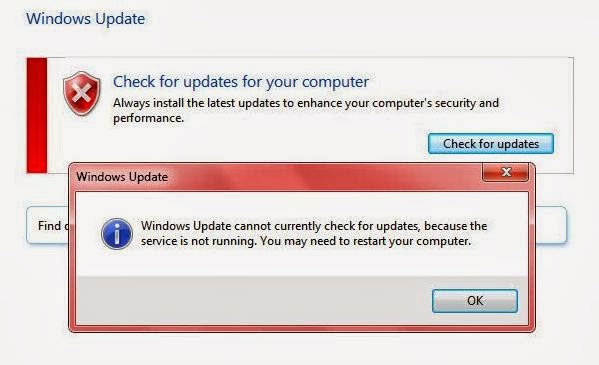
Sometimes Windows 7 may not let you download updates because of some issues with the Software Distribution folder. This may even happen soon after a fresh install of Windows.
Heres how to fix it.
Open command prompt in elevated mode and type:
net stop wuauserv
This will stop the Windows Update service.
Next enter this command:
ren %windir%SoftwareDistribution softwaredistributionold
This will rename the Software Distribution folder so the system will have to recreate a new empty one.
Now all we have to do is restart the Windows Update service by entering:
net start wuauserv
Now we can retry downloading updates from Windows Update.
Available link for download
Subscribe to:
Posts (Atom)